Grade 10-11 Lesson 1
Lesson 1 — Introduction to Computers & Operating Systems
FET Digital Skills Programme | Grade 10–11
A computer is a programmable electronic device that accepts data, processes it according to stored instructions, and produces a result. The word “programmable” is the key difference between a computer and a simpler device like a calculator. A calculator is hard-wired to perform only arithmetic; you cannot change what it does. A computer, on the other hand, can run completely different software and become an entirely different tool. Load a word processor and it becomes a typewriter. Load a browser and it becomes a communication device. Load a game and it becomes an entertainment system. The hardware stays the same; the software changes everything.
The Input–Process–Output (IPO) Cycle

Every task a computer performs follows the same three-stage cycle:
Input
Is any data or command that enters the computer from the outside world. Examples include pressing a key on the keyboard, clicking the mouse, speaking into a microphone, scanning a barcode, or touching a touchscreen. The input device captures the data and sends it to the CPU in digital form.
Process
This is what happens inside the computer after the input is received. The CPU (Central Processing Unit) reads the instructions stored in the currently running program and executes them. It performs calculations, makes logical decisions, moves data between memory locations, and coordinates all other components. This stage is invisible to the user and it happens in nanoseconds inside the processor chip.
Output
Is the result delivered back to the user after processing is complete. Examples include text appearing on screen, a document printing on paper, audio playing through speakers,  a video displaying on a monitor, or data being sent across a network. The output device takes the processed digital result and converts it into a form the user can perceive or use.
Real-world example:
You type a number into a spreadsheet cell (Input). The formula in the spreadsheet calculates a total (Process). The answer appears in the results cell on screen (Output).
2. Hardware vs Software

Every computer system is made up of two inseparable parts: hardware and software. Neither can function without the other.
2.1 Hardware
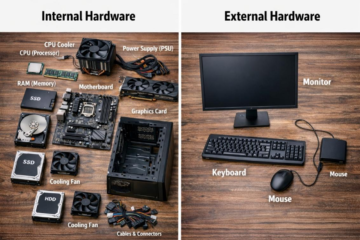
Hardware refers to the physical, tangible components of a computer system, the parts you can see and touch. Hardware is manufactured from physical materials (silicon, copper, plastic, glass)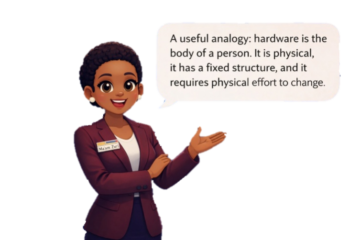 and its fundamental design is fixed at the point of manufacture. You cannot update a keyboard by downloading a file. You cannot patch a CPU the way you patch an app. Hardware changes require physical replacement or upgrade
Examples of hardware include the CPU, RAM modules, SSD or hard drive, motherboard, monitor, keyboard, mouse, graphics card (GPU), speakers, and network interface card (NIC).
2.2 Software
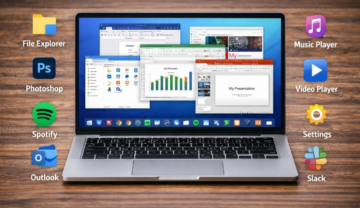
Software refers to the intangible instructions and data that tell the hardware what to do. You cannot hold software in your hand, it exists as binary data stored on a storage medium. Software can be created, copied, updated, deleted, and distributed instantly at almost no cost, which makes it far more flexible than hardware.
There are three main categories of software:
System Software
It manages the hardware directly and provides a foundation for all other software. The most important example is the operating system (covered in Section 5). Other examples include firmware (software embedded in hardware, like a printer’s internal program) and device drivers (small programs that let the OS communicate with specific hardware components like a graphics card or printer).
Application Software
This is what users interact with to perform specific tasks. 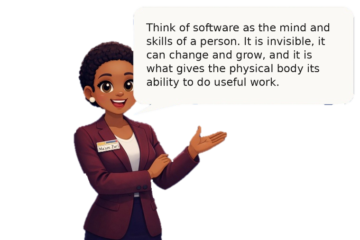 Examples include word processors (Microsoft Word), spreadsheets (Excel), web browsers (Chrome, Firefox), image editors (Photoshop), and communication tools (Teams, WhatsApp Web).
Utility Software
It performs maintenance and support tasks in the background. Examples include antivirus programs, disk cleanup tools, backup utilities, and compression tools like WinRAR or 7-Zip.
2.3 Why Both Are Essential
“Hardware without software is scrap metal. Software without hardware is just numbers.”
This captures the relationship perfectly. A brand-new computer with no operating system installed will turn on, run its built-in firmware, and then stop — it cannot do anything useful without software. Equally, a piece of software with no computer to run it on is useless. The two must always work together.
3. Core Components
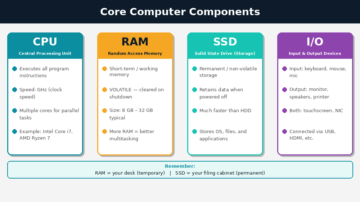
Every computer, whether it is a high-powered desktop, a portable laptop, a tablet, or a smartphone, they all contains the same four essential component groups. The physical size and performance of these components differ between devices, but all four groups are always present.
3.1 CPU (Central Processing Unit)
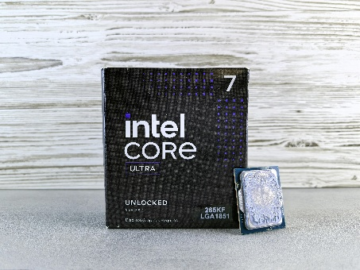
The CPU is the brain of the computer. It is responsible for executing every single instruction in every program that runs on the machine. When you open an app, click a button, or save a file, the CPU is doing the work.
CPU speed is measured in gigahertz (GHz). One gigahertz means the processor can execute one billion clock cycles per second. A higher GHz value generally means faster processing, although modern CPUs use other techniques (such as multiple cores, branch prediction, and out-of-order execution) to improve performance beyond what clock speed alone suggests.
Modern CPUs contain multiple cores, separate processing units on the same chip. A quad-core CPU has four independent processors that can work on different tasks simultaneously. Common consumer CPUs today range from 4 to 24 cores. This is why a modern computer can play music, download a file, and run a browser all at the same time without obvious slowdown.
Well-known CPU manufacturers include Intel (Core i3, i5, i7, i9 series) and AMD (Ryzen 3, 5, 7, 9 series). The CPU is located on the motherboard and is usually covered by a metal heat sink and cooling fan to manage the heat it generates.
3.2 RAM (Random Access Memory)
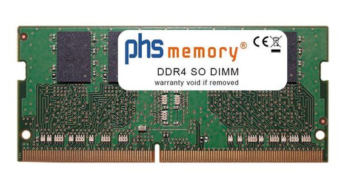
RAM is the computer’s short-term, working memory. When you open a program, the OS loads it from storage (the SSD or HDD) into RAM so the CPU can access it quickly. The CPU reads from and writes to RAM constantly while the program is running.
The most important characteristic of RAM is that it is volatile meaning that all data stored in RAM is permanently lost the moment the computer is switched off or loses power. This is why you must save your work to storage before shutting down. Unsaved data lives only in RAM and will disappear.
RAM capacity is measured in gigabytes (GB). A typical modern computer has between 8 GB and 32 GB. More RAM allows more programs to be open simultaneously without the system slowing down. When RAM is full, the OS begins using a portion of the SSD as “virtual memory” (also called a swap file), which is much slower and this is the primary reason that adding more RAM often dramatically speeds up a slow computer.
3.3 Storage (HDD & SSD)
Storage devices provide permanent, non-volatile memory. Unlike RAM, data on a storage device is retained when the power is off. The operating system, all installed applications, and all user files (documents, photos, videos) live on the storage device.
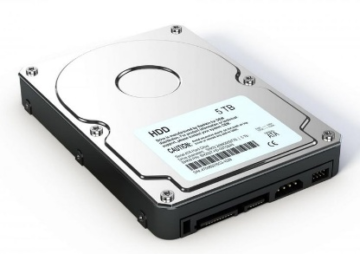
HDD (Hard Disk Drive) stores data on spinning magnetic platters. A read/write head moves across the platters to access data, similar to how a record player stylus reads a vinyl record. HDDs are inexpensive and available in very large capacities (up to 20 TB or more), but the mechanical nature of the device makes them relatively slow and vulnerable to physical damage from drops or vibration.
SSD (Solid State Drive) stores data on flash memory chips with no moving parts. SSDs are significantly faster 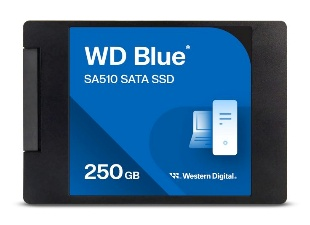 than HDDs, a typical SSD reads data at 500–600 MB per second, compared to 100–150 MB/s for an HDD. They are more durable, quieter, and consume less power. The trade-off is higher cost per gigabyte. Most new laptops and desktops now come with SSDs as standard.
3.4 I/O Devices
I/O stands for Input/Output. I/O devices are the hardware components that allow the computer to communicate with the user and the outside world.
Input devices send data to the computer. Common examples include the keyboard (sends character codes), the mouse (sends cursor position and click events), a microphone (sends audio data), a webcam (sends video frames), a touchscreen (sends touch coordinates), and a scanner (sends image data).
Output devices receive data from the computer and present it to the user. Common examples include the monitor (displays visual output), speakers and headphones (produce audio output), a printer (produces physical printed pages), and a projector (displays enlarged visual output on a surface).
Some devices perform both functions: a touchscreen both receives touch input and displays visual output; a USB hub both receives data from connected devices and sends power and data to them.
I/O devices connect to the computer through physical ports including USB-A, USB-C, HDMI, DisplayPort, 3.5 mm audio jack, and Ethernet (RJ-45).
4. Types of Computers
All computers share the same core architecture (CPU, RAM, storage, I/O), but they are built in different form factors for different purposes. The main types you will encounter are desktops, laptops, tablets, and smartphones.

5. The Operating System
5.1 What is an Operating System?
An operating system is system software that manages all of the computer’s hardware and provides a stable, consistent platform on which all other software can run. Without an operating system, no application can function. When you open Microsoft Word, Word does not communicate directly with the CPU, RAM, and storage, it makes requests to the operating system, and the OS carries out those requests on Word’s behalf. This separation means that applications can be written once and run on any hardware that the OS supports, regardless of the specific components inside the machine.
5.2 What the OS Does
The operating system is responsible for six core functions:
- Process management: The OS decides which program gets access to the CPU and for how long. Because multiple programs run at the same time on a single CPU, the OS rapidly switches between them (thousands of times per second) in a technique called multitasking or time-slicing. Each program gets a small slice of CPU time in turn, so quickly that all programs appear to run simultaneously.
- Memory management: The OS allocates a portion of RAM to each running process and protects each process’s memory space from being corrupted by another process. When a process finishes, its RAM is reclaimed and made available for other programs. If RAM runs low, the OS moves less-used data to a swap file on the storage drive.
- File system management: The OS controls how data is organised, named, stored, and retrieved on storage devices. It maintains a file system a structured catalogue of files and folders so that data can be found reliably.
- Device driver management: Every hardware component requires a device driver which is a small piece of software that translates generic OS commands into the specific instructions that component understands. The OS loads and manages these drivers so that applications can use hardware like printers, graphics cards, and network adapters without needing to know anything about their internal workings.
- Security and access control: The OS maintains a system of user accounts, passwords, and permissions. Each user account has access only to the files and settings assigned to it. Administrator accounts have full access to the system; standard accounts are restricted. This prevents unauthorised users from accessing private files or making changes that could damage the system.
- User interface: The OS provides the interface through which users interact with the computer. This is either a Graphical User Interface (GUI), the visual desktop environment with windows, icons, and menus or a Command Line Interface (CLI) which is a text-based environment where the user types Most modern OSes provide both.
5.3 Operating System Examples
Windows 11 (Microsoft) Windows is the most widely used desktop operating system in the world. It is proprietary software, meaning users must purchase a license. Major versions are released every few years (Windows 7, 8, 10, 11), with ongoing security updates in between.
macOS (Apple) macOS is Apple’s desktop operating system and runs exclusively on Apple hardware (MacBook, iMac, Mac Mini, Mac Pro). It is Unix-based, which makes it exceptionally stable and secure. macOS is proprietary software, though it is provided free as an update for existing Apple hardware owners.
Linux(Ubuntu and other distributions) Linux is a free, open-source operating system kernel. “Open-source” means that the source code is publicly available for anyone to read, modify, and redistribute. Linux powers approximately 96% of the world’s web servers, the majority of supercomputers, and the Android mobile operating system. It is free to use, highly customizable, and very secure.
6. The Desktop Environment
The desktop environment is the visual, graphical layer of the operating system , the workspace you see and interact with after logging in. Understanding its components allows you to navigate and control the computer efficiently.
6.1 Desktop Icons
Icons are small pictures on the desktop surface that act as shortcuts to files, folders, and applications. Double-clicking an icon opens the item it represents. Right clicking an icon displays a context menu with options such as Open, Rename, Delete, Copy, and Properties. You can move icons by dragging them, arrange them automatically by right-clicking the desktop background and choosing “Sort by”, and create new shortcuts by right-clicking and selecting “New > Shortcut”.
6.2 The Taskbar

The taskbar is the horizontal bar that runs along the bottom of the screen by default in Windows. It contains several key elements: the Start button (Windows logo) on the left, which opens the Start Menu; pinned application shortcuts for quick launch; buttons for each currently open window (clicking these minimises or restores the window); and the system tray on the right. The taskbar can be customised — you can pin applications to it, move it to a different edge of the screen, or set it to auto-hide when not in use.
6.3 The Start Menu
The Start Menu is the central hub for accessing all software and settings on the computer. You open it by clicking the Start button on the taskbar or pressing the Windows key on the keyboard. From the Start Menu you can search for and launch any installed application, access your pinned and recently used apps, open Settings to customise the OS, navigate to your user account options (change password, sign out, switch user), and access the Power menu (shut down, restart, sleep). 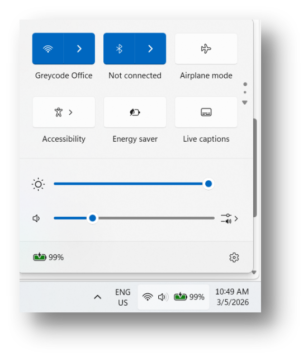 In Windows 11 the Start Menu is centred on the taskbar and features a search bar, pinned apps, and a recommendations section.
6.4 The System Tray (Notification Area)
The system tray is located on the right side of the taskbar. It displays small icons representing background processes and system status indicators. Typical icons include Wi-Fi signal strength, Bluetooth status, battery level (on laptops), speaker volume, language input mode, and the clock and date. Clicking icons in the system tray opens quick controls, for example, clicking the Wi-Fi icon shows available networks, and clicking the volume icon lets you adjust audio output.
6.5 Windows
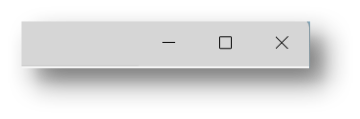
A window is the resizable, movable frame in which an open application displays its content. Every window has three control buttons in the top-right corner: the minus button (–) minimises the window to the taskbar without closing it; the square button (□) maximises the window to fill the screen (clicking it again restores the previous size); and the X button closes the window and terminates the application (or the active document within it). You can move a window by clicking and dragging its title bar. You can resize it by clicking and dragging any edge or corner
6.6 File Explorer
File Explorer is the built-in application for navigating the file system — browsing drives, folders, and files stored on the computer. You open it by pressing Win + E, clicking the folder icon on the taskbar, or searching for “File Explorer” from the Start Menu. The left panel (Navigation Pane) shows a tree structure of your drives and key folders (Desktop, Documents, Downloads, Pictures). The main area shows the contents of the selected folder.
6.7 Keyboard Shortcuts
- Keyboard shortcuts allow you to perform common actions without using the mouse. Learning them significantly speeds up your work:
- Win + L— Lock the screen immediately.
- Win + E— Open File Explorer.
- Win + D— Show or hide the desktop (minimise all windows).
- Ctrl + Shift + Esc— Open Task Manager directly.
- Alt + Tab— Switch between open windows (hold Alt, press Tab to cycle through).
- Ctrl + S— Save the current file.
- Ctrl + Z— Undo the last action.
- Ctrl + Y— Redo the last undone action.
- Ctrl + C / Ctrl + X / Ctrl + V— Copy / Cut / Paste.
- Ctrl + Alt + Del— Opens a security screen with options to lock, sign out, open Task Manager, or switch user.
- F2— Rename the selected file or folder.
- Delete— Move selected item to the Recycle Bin.
Shift + Delete — Permanently delete without sending to Recycle Bin.
8. Shutdown Procedure
- Save all your work before shutting down the computer.
- Close all open applications and programs.
- Click the Start Menu(Windows icon).
- Click the Power
- Select Shut Down.
- Wait until the computer turns off completely before closing the laptop lid or unplugging it.
- Never switch off the computer by holding the power button unless the computer is frozen.
Important:
Shutting down correctly prevents data loss and damage to the operating system.